
Contents
- 1 What is r2modman?
- 2 Why R2modman Download Is Still the Best Choice in 2026
- 3 Where to Download r2modman Safely
- 4 How to Install r2modman (Step-by-Step)
- 5 How to Use Auto Find in r2modman
- 6 How to Start Modded Games
- 7 Profile Management and Syncing
- 8 Supported Games in 2026
- 9 Steam Deck Optimization Guide
- 10 Common R2modman Download Issues and Fixes
- 11 Is r2modman Safe?
- 12 FAQs
- 13 Conclusion
When you search for R2modman free download for pc in 2026, you are usually looking for a safe, clean, and reliable way to manage your game mods. r2modman is an open-source mod manager built for PC modding communities that use Thunderstore. It allows you to download, install, configure, and launch mods without changing your original game files. This makes your modding workflow stable and controlled.
You prefer r2modman over the standard Thunderstore manager because it offers a zero-bloat experience. There are no forced logins, no ads, and no heavy background services running on your system. The application is lightweight, built on Electron, and designed for performance and simplicity. If you care about clean system usage and full control over your mod setup, the r2modman download remains the preferred solution in 2026.
Another key reason you choose R2modman is its profile-based mod management. You can create separate profiles for different mod builds. For example, you can keep one vanilla profile, one experimental setup, and one multiplayer-safe configuration. Each profile stores its own mod list, dependency structure, and configuration files. This reduces conflicts and gives you a structured mod management environment.
In addition, the auto find functionality makes your experience faster and more efficient. When you launch the app, R2modman can auto-find supported games installed on your system. It detects game directories and links them with Thunderstore packages. This feature helps you discover compatible mods quickly without manual path configuration. As a result, you save time, avoid setup errors, and move directly into mod testing and gameplay.
In 2026, if your goal is secure, flexible, and organized PC modding, the r2modman download continues to set the standard.
What is r2modman?
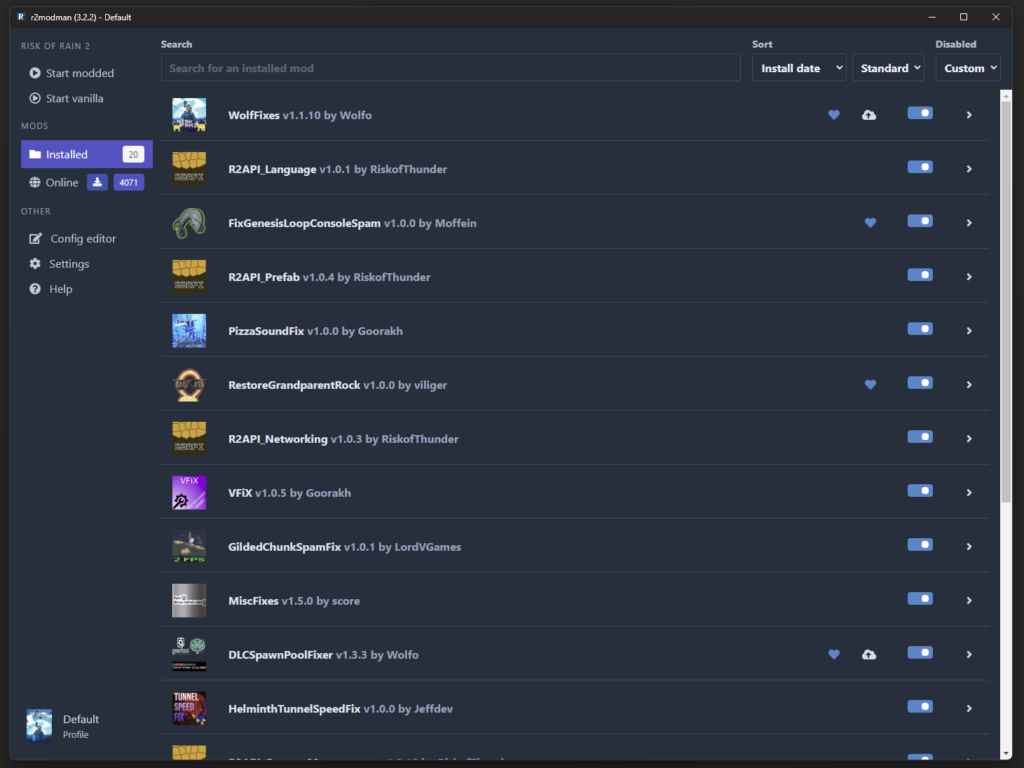
R2modman is an open-source mod manager designed to make PC game modding simple, safe, and organized. When you download r2modman, you are using a tool that puts control in your hands. Being open-source means the community and developers maintain transparency, so you can trust the software does not include hidden ads, trackers, or unnecessary background processes. This also allows the app to evolve quickly with community-driven updates, bug fixes, and new features that match the latest game releases.
A core strength of r2modman is its integration with the Thunderstore API. This connection allows you to access a vast library of mods directly from the manager. You can browse, download, and update mods without leaving the app, ensuring your mod lists stay current. By using the Thunderstore API, r2modman ensures compatibility and smooth installation, reducing the risk of corrupt files or mismatched mod versions.
The application is built on Electron, a framework that allows the app to run cross-platform on Windows, Linux, and macOS. Electron provides a modern interface while keeping the software lightweight and efficient. This architecture lets r2modman deliver fast performance without heavy system resource usage, which is especially important when you run multiple mods or profiles.
r2modman works seamlessly with popular modding frameworks like BepInEx and Unity. BepInEx is a key framework for many Unity-based games, allowing mods to safely load without altering the original game files. Unity support means you can mod a wide range of indie and mainstream games built on this engine, giving you flexibility and control over your modding environment.
The supported games ecosystem in R2modman is extensive. It covers popular titles such as Risk of Rain 2, Valheim, Lethal Company, Ultrakill, and more. With auto find functionality, the app can detect installed games on your system and link them with available mods automatically. This ensures that your modding experience is smooth, efficient, and compatible with the most up-to-date game versions.
In summary, r2modman is more than just a download tool. It is an open-source, Electron-based mod manager that connects you directly to Thunderstore, supports BepInEx and Unity games, and provides a reliable ecosystem for your modding needs. With r2modman, your mods stay organized, your games stay safe, and your setup stays under your control.
Why R2modman Download Is Still the Best Choice in 2026
When you compare r2modman download with the Overwolf Thunderstore Manager, the main difference is control and simplicity. Overwolf runs as a platform layer in the background, which means you install both the Thunderstore manager and the Overwolf client together. This setup may include background services, startup processes, and account-based features. If you prefer a clean modding workflow without extra software layers, r2modman gives you a more direct solution.
With r2modman, you get zero ads and no forced account login. You install the application as a standalone Electron app, and you launch it only when you need to manage your mods. No persistent background processes are running after you close it. This reduces system resource usage and gives you better performance control, especially if you are using a mid-range PC or a Steam Deck.
Offline modding support is another strong advantage. After you complete the R2modman download and sync your mods from Thunderstore, you can manage and launch your profiles without an active internet connection. This is important if you travel, use limited bandwidth, or want stable local testing. Your installed mods remain available, and your configuration files stay intact even when you are offline.
From a security perspective, r2modman uses a shim-based loading method, usually through winhttp.dll. This approach allows the mod manager to load BepInEx and other dependencies from a separate folder instead of modifying your core game files. When you click Start Modded, the manager injects the mod framework at runtime. Your original game installation remains unchanged, so you can still launch the vanilla version directly from Steam without conflicts. This architecture reduces corruption risk and improves stability.
Profile management is also more flexible. You can create multiple profiles for the same game, each with a different mod list and configuration. For example, you may keep one profile for multiplayer-safe mods and another for experimental builds. r2modman allows you to export a profile as a code string. You can share this export code with friends, and they can import it to auto-sync the same mod versions and dependencies. This ensures version consistency and reduces compatibility issues in multiplayer sessions.
In practical terms, if your priority is lightweight performance, offline access, secure mod loading, and structured profile control, r2modman remains the more efficient alternative to the Overwolf Thunderstore Manager in 2026.
Where to Download r2modman Safely
When you are ready to get started with r2modman download, it is essential to use official and trusted sources. Using the wrong source can put your system at risk or give you outdated or corrupted files. In 2026, there are two primary places where you can safely download the latest r2modman version: GitHub and Thunderstore.
GitHub is the official hub for the r2modman Plus releases maintained by ebkr. By visiting the ebkr/r2modmanPlus repository, you can access the most recent stable version. As of early 2026, the current release is v3.2.14. GitHub provides direct access to the executable files, AppImages, or macOS builds, along with detailed release notes. By downloading from GitHub, you are guaranteed to get the original software without modifications or hidden malware.
Thunderstore is another official source. The Thunderstore app listing allows you to manually download r2modman from the “Apps” or “ebkr” package section. This platform integrates seamlessly with r2modman, allowing you to link your mod library and update tools efficiently. By using Thunderstore, you also gain quick access to mod updates, community recommendations, and support for popular games like Risk of Rain 2, Lethal Company, and Valheim.
It is important to avoid third-party mirror sites. While these sites may promise faster downloads or alternative versions, they are often unreliable. Third-party mirrors can distribute outdated files, altered executables, or software bundled with ads and malware. If you use these sources, you risk corrupting your game setup or exposing your system to security threats. Always stick to GitHub or Thunderstore for trusted downloads.
Once you download r2modman, follow a careful version verification process. Always check that the file name matches the official release and verify the version number in the release notes. Many official releases also provide checksums—unique cryptographic codes that ensure the file has not been altered. By comparing the checksum from the official GitHub page with your downloaded file, you can confirm the integrity of the software before installation.
Reviewing the release notes is also critical. Release notes include important information about new features, bug fixes, and compatibility updates. By reading them, you know what has changed in the latest version, which helps you avoid conflicts with your existing mods and ensures smooth gameplay.
By following these steps—downloading from official GitHub or Thunderstore sources, avoiding third-party mirrors, verifying the version, checking checksums, and reviewing release notes—you ensure that your r2modman download is safe, reliable, and ready for seamless mod management.
How to Install r2modman (Step-by-Step)
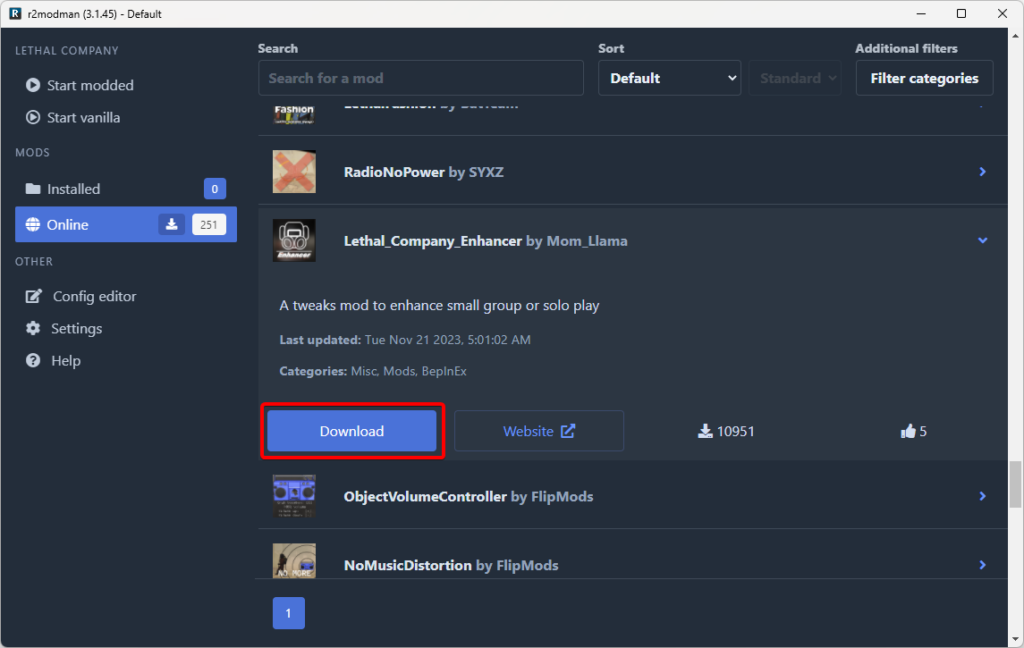
If you are using Windows, the R2modman download process is simple and direct. You download the .exe setup file from the official GitHub release page. Once the file is saved, you double-click the installer and follow the standard setup wizard. The installation takes only a few minutes.
After installation, you launch r2modman from your desktop or Start menu. The application will automatically check for updates and confirm that you are running the latest version. This ensures compatibility with the Thunderstore API and supported games. On Windows, the setup is optimized for plug-and-play use, so you do not need manual configuration in most cases.
Linux and Steam Deck installation (.AppImage executable permissions)
On Linux or Steam Deck, the r2modman download usually comes as an.AppImage file. After downloading the file, you must enable executable permissions. You right-click the file, open Properties, and go to the Permissions tab. Then you check the option that allows the file to run as a program.
Once permissions are enabled, you double-click the AppImage to launch r2modman. On Steam Deck, this process is done in Desktop Mode. This ensures the application runs correctly within the Linux environment. The AppImage format keeps the application portable, so you can move it without full reinstallation.
Adding as a Non-Steam Game
If you are using a Steam Deck, adding r2modman as a Non-Steam Game improves usability. You open Steam in Desktop Mode, click “Add a Game,” and select “Add a Non-Steam Game.” Then you browse and select the r2modman AppImage.
By adding it to your Steam library, you can launch r2modman directly from Gaming Mode. Many users assign a Web Browser controller layout for easier navigation. This setup allows you to manage mods and launch modded games without switching back to Desktop Mode frequently.
MacOS setup (.dmg or .app)
On macOS, the r2modman download is usually provided as a .dmg or standalone .app file. You open the .dmg file and drag the application into your Applications folder. If macOS shows a security warning, you can allow the app from System Settings under Privacy and Security.
Once installed, you launch r2modman like any other Mac application. Keep in mind that game compatibility depends on whether the specific title supports macOS and mod frameworks like BepInEx.
First launch configuration process
When you open R2modman for the first time, the app will prompt you to select a supported game. The auto find feature scans your system to detect installed games automatically. If detection works correctly, you simply choose the game from the list and create a profile.
After selecting your game, R2modman will configure the mod directory and link it with Thunderstore. You can then browse mods, install dependencies, and click “Start Modded” to test your setup. This first launch configuration ensures your mod manager runs safely without changing your original game files.
By following these steps for Windows, Linux, Steam Deck, or macOS, you create a stable and structured environment for r2modman download and long-term mod management.
How to Use Auto Find in r2modman
Auto find is one of the most powerful features in R2modman, designed to make mod discovery and setup faster and easier. When you hear “auto find,” it means the app can automatically locate your installed games on your system and connect them with compatible mods. Instead of manually browsing for game directories or guessing where files are stored, r2modman handles this process for you, saving time and reducing setup errors.
When you launch r2modman, the auto find function scans common installation paths on your computer, including Steam, Epic Games, and GOG directories. It identifies supported games and links them to the correct mod folders. For example, if you have Risk of Rain 2 installed, r2modman will detect the game, check for required BepInEx dependencies, and prepare the mod environment automatically. This ensures that your game is ready for modding without altering core files.
Auto find also works to detect BepInEx frameworks, which are essential for many Unity-based games. The feature confirms that the correct version of BepInEx is installed and that any required dependencies are in place. If a framework is missing or outdated, r2modman will prompt you to install or update it, ensuring your mods load correctly.
For popular games like Risk of Rain 2, Lethal Company, and Valheim, auto find helps maintain mod compatibility. The manager can identify which mods are safe to use with each game version, reducing crashes or conflicts. This automated detection is especially helpful if you run multiple profiles or frequently switch between different mod setups.
However, there are cases when Auto Find might not detect your game. This can happen if your installation is on an unusual drive, a custom folder, or a microSD card on devices like the Steam Deck. In such cases, you can manually point r2modman to the correct game directory. After linking it manually, auto find will recognize the path for future use.
On the Steam Deck, auto find has some limitations due to Linux permissions. Games installed on the internal SSD are detected reliably, but those on a microSD card may not appear automatically. To fix this, ensure the game is installed on the internal drive, and you may need to run r2modman in Desktop Mode with the correct executable permissions enabled.
Using auto find in R2modman ensures that your mod setup is fast, accurate, and safe. By automatically detecting installed games, confirming BepInEx dependencies, and checking mod compatibility, the feature removes much of the manual work involved in mod management, letting you focus on gameplay and experimenting with new mods.
How to Start Modded Games
After you complete your R2modman download and install your selected mods, the next key step is using the “Start Modded” button. This button is your main control point for launching the game with active mods. Instead of starting the game directly from Steam, you launch it through r2modman. This ensures that your selected profile, installed dependencies, and configuration files are loaded correctly.
When you click “Start Modded,” r2modman injects the mod framework at runtime. It uses a shim method, usually through a file like winhttp.dll, to load BepInEx and other mod components from a separate mod directory. This means your original game files remain unchanged. The manager creates a controlled mod environment that operates alongside the base game, not inside it. From a system perspective, this reduces file corruption risk and keeps your installation clean.
It is important to understand the difference between a vanilla launch and a modded launch. When you start the game normally from Steam, you are running the original version with no modifications. No external plugins or configuration files are applied. When you use “Start Modded,” r2modman activates your selected profile and loads all enabled mods and dependencies before the game starts. The gameplay experience may include new features, quality-of-life improvements, or custom content, depending on your mod list.
This separation gives you flexibility. You can switch between vanilla and modded gameplay at any time. If you face crashes or compatibility issues, you can disable mods or change profiles without reinstalling the game. This profile-based control improves workflow efficiency and reduces troubleshooting time.
For multiplayer games, using r2modman creates a safer testing environment. You can maintain a dedicated multiplayer-safe profile that only includes approved or synchronized mods. By exporting and sharing your profile code, you ensure that all players use the same mod versions. This minimizes version mismatch errors and connection failures. If needed, you can test new mods in a separate experimental profile before using them in a live multiplayer session.
By using the “Start Modded” button correctly, you maintain system stability, protect your core game files, and gain full control over your modded gameplay experience.
Profile Management and Syncing
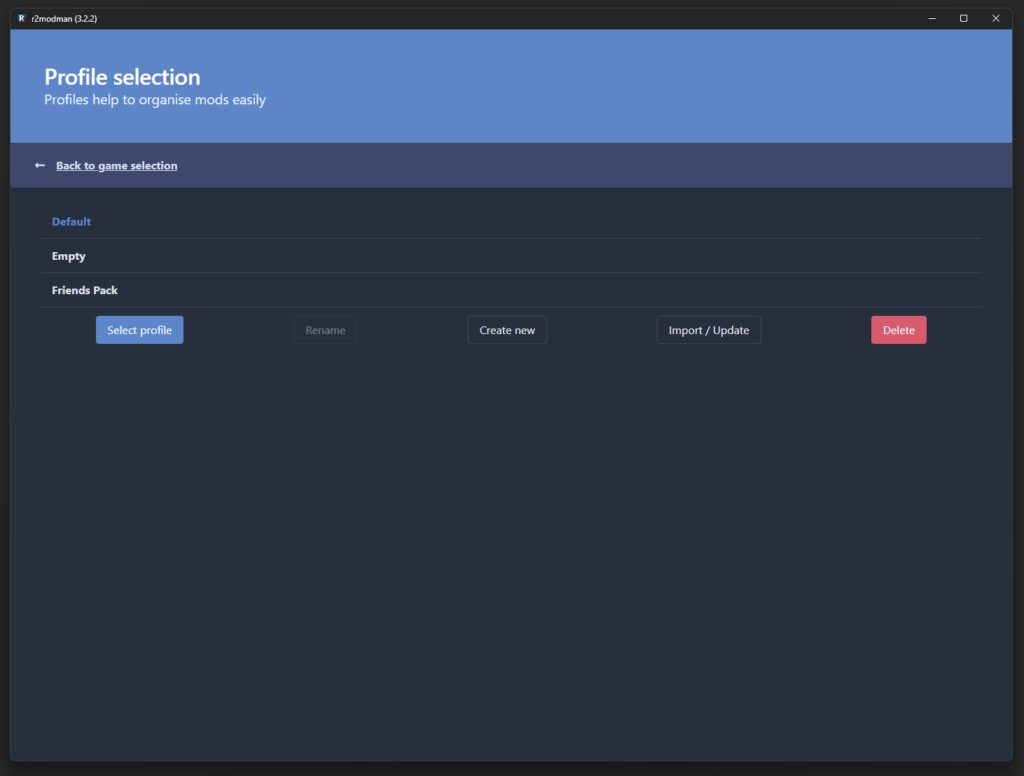
When you complete your R2modman download, one of the most powerful features you gain is profile-based mod management. A profile is a separate environment where your selected mods, dependencies, and configuration files are stored. You can create multiple mod profiles for the same game without conflict.
For example, you can create one profile for vanilla testing, one for heavy modded gameplay, and one optimized for multiplayer. Each profile has its own mod list and settings. This structure prevents version conflicts and makes troubleshooting easier. If one profile crashes, your other setups remain safe and untouched.
Exporting profile code
r2modman allows you to export a profile as a profile code. This code contains your mod list, exact versions, and dependency structure in a compressed format. You simply click the export option, and the manager generates a shareable string.
This feature is important for version control. Instead of manually listing each mod, you export one profile code that represents your full configuration. It saves time and ensures accuracy when sharing or moving your setup to another system.
Importing profile to auto sync exact versions
When you receive a profile code, you can import it directly into r2modman. The manager will auto-sync all required mods and their exact versions using the Thunderstore API. This ensures that your setup matches the original profile without manual searching.
Auto sync reduces human error. You avoid installing the wrong version of a mod or missing required dependencies. This is especially important for multiplayer games where version mismatch can cause connection failures or instability.
Sharing mod setups with friends
If you play games like Risk of Rain 2, Lethal Company, or Valheim, sharing mod setups becomes simple with profile export and import. You send the profile code to your friends, and they import it into their own R2modman installation. Within minutes, everyone has the same mod configuration.
This method improves multiplayer stability and ensures a consistent gameplay experience. You reduce technical issues and focus on playing instead of troubleshooting. From a workflow perspective, this creates a structured and reliable mod distribution system.
Backup and restore profiles
R2modman also supports backup and restore functions. You can create backups of your profiles before making major changes, such as adding new mods or updating frameworks like BepInEx. If something goes wrong, you restore the previous backup and return to a stable state.
This backup strategy protects your mod ecosystem. Instead of reinstalling the game or rebuilding your mod list from scratch, you restore your saved configuration in a few steps. It improves long-term mod management and reduces downtime.
By using multiple profiles, export codes, auto sync features, and backup tools, you maintain full control over your mod environment. Your setup becomes organized, scalable, and easy to manage across devices and multiplayer sessions.
Supported Games in 2026
When you use the r2modman download for Risk of Rain 2, you enter one of the most active modding communities on Thunderstore. This game is built on Unity and works smoothly with BepInEx, which makes mod integration stable and efficient. You can install gameplay expansion mods, quality-of-life updates, new characters, and balance adjustments. With profile management, you can test different builds without affecting your main setup. Auto find detects your Risk of Rain 2 installation and prepares the correct mod directory automatically.
Lethal Company
Lethal Company has seen rapid growth in mod popularity. When you manage this title with r2modman, you can install multiplayer enhancements, new creatures, UI improvements, and performance tweaks. The mod manager ensures dependency control so that required frameworks load correctly. If you are playing with friends, exporting a profile code ensures everyone runs the same mod versions. Auto find helps detect the installed game path and link it with the Thunderstore package database.
Valheim
Valheim remains one of the strongest survival sandbox games in the modding ecosystem. With r2modman, you can configure building expansions, server-side utilities, visual upgrades, and gameplay adjustments. The manager supports structured profile separation, which is useful if you manage both solo and dedicated server builds. Auto find scans your system, identifies the Valheim installation, and connects it with compatible mods through the Thunderstore API.
Ultrakill
Ultrakill also benefits from r2modman support, especially for players who want custom content and gameplay changes. The mod manager helps you control plugin versions and maintain compatibility with BepInEx. By using separate profiles, you can test experimental mods while keeping a stable configuration for regular play. Auto find reduces manual setup by locating the correct game directory and confirming framework requirements.
Content Warning
Content Warning is another supported title that uses Unity-based mod frameworks. When you configure it through r2modman, you gain access to community-driven enhancements and gameplay modifications. The manager organizes dependencies and ensures clean mod loading without altering original game files. This structured approach lowers crash risk and keeps your installation safe.
Expanding support via the Thunderstore ecosystem
The Thunderstore ecosystem continues to expand each year. As new Unity-based games gain popularity, developers add them to the Thunderstore API. R2modman integrates directly with this ecosystem, meaning supported games increase over time. When a new title becomes available, the manager can include it in the supported list without requiring a complete redesign of the software.
How does auto find detect new supported titles
The auto find feature plays a key role in expanding support. When you update r2modman, it refreshes its internal database of supported games. During launch, it scans standard installation paths and compares detected titles with the updated Thunderstore list. If a newly supported game is installed on your system, it appears automatically in the selection menu.
If auto find does not detect a new title immediately, you can manually link the game directory once. After that, r2modman remembers the path and includes it in future scans. This automated detection system ensures your mod management process remains efficient as the Thunderstore ecosystem grows.
Steam Deck Optimization Guide
When you use the r2modman download on Steam Deck, the storage location plays an important role. For best performance and stable auto find detection, you should install your supported games on the internal SSD. Many users install games on a microSD card to save space, but this can create permission conflicts in Linux. Mods may fail to load, or the game may not be detected correctly by r2modman.
By keeping the game on the internal SSD, you reduce read and write delays and avoid Linux file access restrictions. This ensures that BepInEx frameworks and mod folders are loaded correctly when you click Start Modded. From a stability and performance perspective, internal storage is the recommended configuration.
Linux permissions fix
Steam Deck runs on a Linux-based system, so file permissions can affect how r2modman operates. After downloading the AppImage file, you must enable executable permissions. You do this by right-clicking the file in Desktop Mode, opening Properties, and allowing it to run as a program. Without this step, the application will not launch.
If Auto Find does not detect your game, it may be due to restricted folder permissions. In such cases, you should confirm that the game directory allows read and execute access. Running r2modman in Desktop Mode ensures proper access to the Steam installation paths. Once permissions are corrected, the manager can detect the game and configure the mod environment properly.
Controller layout for Gaming Mode
To improve usability, you can add R2modman as a Non-Steam Game and launch it from Gaming Mode. After adding it to your Steam library, you should assign a controller layout that works well with desktop-style navigation. Many users select a Web Browser layout because it provides trackpad and pointer control.
This setup allows you to browse Thunderstore, install mods, manage profiles, and click Start Modded without switching back to Desktop Mode. It creates a more seamless workflow and makes mod management more efficient on a handheld device.
Performance tweaks for mod-heavy profiles
If you use large mod packs or heavy profiles, performance optimization becomes important. First, avoid installing unnecessary plugins that duplicate features. Keep your mod list clean and organized within separate profiles. This reduces memory usage and startup time.
Second, monitor your active background applications. Even though r2modman is lightweight, running multiple services on the Steam Deck can reduce available system resources.
Third, test your mod-heavy profile in stages. Add a few mods at a time and confirm stability before expanding further. This structured approach helps you identify performance bottlenecks quickly.
By installing games on the internal SSD, correcting Linux permissions, optimizing controller layout, and managing mod-heavy profiles carefully, you create a stable and efficient r2modman setup on Steam Deck.
Common R2modman Download Issues and Fixes
If you complete the r2modman download on Linux or Steam Deck and the AppImage does not launch, the issue is usually related to file permissions. By default, Linux may block the file from running as a program. You need to right-click the AppImage file, open Properties, and enable the option to allow execution.
If the app still does not open, confirm that the file was downloaded fully and is not corrupted. You can re-download the file from the official GitHub release page and verify the version number. This ensures file integrity and reduces startup errors.
Game not detected via auto find
When Auto Find does not detect your installed game, the most common reason is a non-standard installation path. If your game is installed on a different drive, custom folder, or microSD card, r2modman may not locate it automatically.
To fix this, you can manually select the game directory inside the mod manager. Once you link it manually, r2modman will remember the path for future scans. On Steam Deck, ensure the game is installed on the internal SSD and that you are running the manager in Desktop Mode with correct Linux permissions.
Mods not loading
If your mods are installed but not loading when you click Start Modded, check your BepInEx framework first. Many Unity-based games require BepInEx to function correctly. Confirm that it is installed and enabled within your active profile.
Next, verify that you are launching the game using the “Start Modded” button, not directly from Steam. Launching from Steam bypasses the shim loading process and runs the vanilla version. Also check for version mismatches between mods and the game update. Updating or rolling back to compatible versions often resolves this issue.
Profile corruption
Profile corruption can happen if you interrupt the app during updates or manually change configuration files. If a profile fails to load or crashes on startup, create a new profile and test with minimal mods.
If you previously created a backup, you can restore the profile to a stable version. This is why regular backups are important in profile-based mod management. Keeping separate profiles for testing and multiplayer also reduces the risk of corruption in your main setup.
Thunderstore API sync errors
Sometimes r2modman may show Thunderstore API sync errors when browsing or updating mods. This usually happens due to internet connection issues or temporary server problems. First, confirm your network connection is stable. Then restart the application to refresh the API connection.
If the issue continues, check for a new version of r2modman. Updates often include API compatibility fixes. Keeping your mod manager updated ensures smooth integration with the Thunderstore ecosystem.
By understanding these common issues and applying structured troubleshooting steps, you maintain a stable and efficient R2modman modding environment.
Is r2modman Safe?
When you complete your R2modman download, you are installing an open-source mod manager. This means the source code is publicly available for review on GitHub. Developers and community members can inspect how the software works, how it connects to the Thunderstore API, and how it loads mods using the shim method.
Open-source transparency builds trust. You are not relying on hidden systems or closed background services. If there are bugs or security concerns, they can be reported and fixed openly. This development model reduces risk and increases long-term stability.
No forced login
Another important safety factor is that r2modman does not require a forced account login. You do not need to create an account or connect to a third-party platform to manage your mods. You simply install the application and start configuring your profiles.
This approach protects your privacy and reduces exposure to unnecessary data collection. From a business and technical perspective, fewer login dependencies mean fewer failure points and fewer security vulnerabilities.
No telemetry tracking
R2modman does not include aggressive telemetry tracking or hidden analytics services. The application focuses on mod management, not user behavior monitoring. It connects only to the Thunderstore API to browse, download, and update mods.
Because there are no heavy background processes collecting usage data, your system performance remains stable. This also aligns with privacy-conscious users who prefer clean software without hidden tracking systems.
Community trust and GitHub maintenance
Community trust plays a major role in software safety. r2modman is actively maintained on GitHub, where updates, issue tracking, and release notes are publicly documented. You can review version history, see bug fixes, and confirm compatibility updates for supported games like Risk of Rain 2, Lethal Company, and Valheim.
Active maintenance means the project adapts to new game updates and modding framework changes, such as BepInEx revisions. When developers respond quickly to issues, you benefit from improved stability and security.
By combining open-source transparency, no forced login, no telemetry tracking, and active GitHub maintenance, r2modman provides a secure and reliable mod management solution. When used correctly and downloaded from official sources, it offers a safe environment for structured PC modding in 2026.
FAQs
How do I download R2modman safely?
To download R2modman safely, always use official sources. The two trusted locations are the GitHub repository maintained by ebkr and the official Thunderstore app listing. Avoid third-party mirrors because they may include outdated files, modified installers, or malware. After downloading, verify the version number and compare checksums if available. Reading the release notes also ensures you have the correct file and understand new features or fixes. This process guarantees a secure installation and prevents errors during setup.
Does r2modman auto find my installed games?
Yes, r2modman includes an auto find feature that scans common installation paths on your system to detect supported games automatically. It can identify games installed through Steam, Epic Games, or GOG, and link them with compatible mod directories. Auto find also checks for necessary frameworks like BepInEx, making sure the mods are ready to load without manual setup. If the game is installed in a non-standard folder or on an external drive, you may need to link it manually, after which r2modman remembers the path for future scans.
Can I use r2modman offline?
Yes, once your mods are downloaded and profiles are configured, you can use r2modman offline. Offline use allows you to manage existing profiles, start modded games, and switch between profiles without an active internet connection. However, to download new mods or update existing ones, you will need an internet connection to access the Thunderstore API. Offline support is especially useful if you have limited bandwidth, travel frequently, or want to test mods without network interruptions.
Is r2modman better than Thunderstore Manager?
In many ways, r2modman is considered better than the Overwolf-integrated Thunderstore Manager. It is lightweight, ad-free, and does not run unnecessary background services. You are not required to log in, which protects your privacy. Profile management, offline support, and secure shim-based mod loading give you more control and stability. While Thunderstore Manager offers similar functionality, r2modman focuses on performance, safety, and a structured modding workflow.
Does r2modman work on Steam Deck?
Yes, r2modman works on Steam Deck using the AppImage file for Linux. You need to enable executable permissions and, ideally, install supported games on the internal SSD to avoid permission conflicts. You can also add R2modman as a Non-Steam Game, assign a Web Browser controller layout, and launch it directly from Gaming Mode. This setup allows you to manage mods, switch profiles, and start modded games without returning to Desktop Mode.
Why is auto find not detecting my game?
Auto find may fail to detect your game for several reasons. If your game is installed on a non-standard drive, a custom folder, or a microSD card on the Steam Deck, the manager might not locate it automatically. Linux file permissions can also prevent detection on Steam Deck or other Linux systems. To resolve this, manually link the game directory in r2modman and ensure proper permissions are set. Once linked, the app will remember the path for future scans, and auto find will function correctly.
Conclusion
Even in 2026, the R2modman download continues to be the preferred choice for PC modding enthusiasts. Its combination of safety, flexibility, and convenience sets it apart from other mod managers, making it the gold standard for gamers who want a reliable modding experience.
One of the most significant advantages is the auto find feature. When you launch r2modman, it scans your system to detect installed games automatically. You do not need to manually locate directories or configure complex paths. Auto find also identifies necessary frameworks like BepInEx and ensures that mods are compatible with your game version. This convenience saves you time and reduces errors, allowing you to focus on gameplay rather than setup.
Security and reliability are other key reasons R2modman remains the top choice. By downloading only from official GitHub releases or the Thunderstore app listing, you avoid corrupted files, malware, or outdated versions. Verifying version numbers, checking checksums, and reviewing release notes ensures that your installation is both safe and up to date. Using official sources also guarantees full compatibility with supported games like Risk of Rain 2, Lethal Company, Valheim, and Ultrakill.
r2modman provides a clean, flexible, and structured modding environment. Its open-source transparency, zero ads, no forced login, and profile-based management give you full control over how you mod your games. You can create multiple profiles, export and share configurations, and safely test mods without affecting your base game files. Offline support and Shim-based mod loading further protect your installation and allow you to enjoy modded gameplay anywhere.
In short, r2modman download in 2026 is more than a tool—it is a complete modding ecosystem. With auto find convenience, secure downloads from official sources, and a safe, clean, and flexible workflow, it remains the ultimate solution for managing and enjoying mods across your favorite PC games.